Relay Panel
Claude Code Relay 使用指南Claude Code Relay User Guide
Claude Code Relay 让你通过中继服务器使用 Claude Code CLI。按照以下步骤开始使用。Claude Code Relay lets you use Claude Code CLI through a relay server. Follow these steps to get started.
ccr /login → 选择 SK → 粘贴授权码 →Select SK → Paste auth code → ccr
第一步:添加代理 (Proxy)Step 1: Add Proxy
每个 SK 必须绑定一个代理 IP,确保请求通过独立的出口 IP 发出。Each SK must be bound to a proxy IP to ensure requests go through an independent exit IP.
- 进入 Proxies 标签页Go to the Proxies tab
- 填写协议(SOCKS5 / HTTP)、主机地址、端口,以及用户名密码(如需要)Fill in protocol (SOCKS5 / HTTP), host, port, and username/password (if needed)
- 点击 Add 添加,然后点 Test 验证出口 IPClick Add, then click Test to verify the exit IP
第二步:添加 Session Key (SK)Step 2: Add Session Key (SK)
SK 是你的 Anthropic 账号凭证(以 sk-ant- 开头),需要从浏览器登录 claude.ai 后提取。SK is your Anthropic account credential (starts with sk-ant-), extracted from your browser after logging into claude.ai.
1. 登录 claude.ai1. Log in to claude.ai
2. 打开浏览器开发者工具:2. Open browser developer tools:
• Chrome / Edge:按
F12 或 Ctrl+Shift+I(Windows/Linux)/ Cmd+Option+I(macOS)Press F12 or Ctrl+Shift+I (Windows/Linux) / Cmd+Option+I (macOS)• Safari:先在 偏好设置 → 高级 → 勾选"在菜单栏中显示开发菜单",然后按
Cmd+Option+IPreferences → Advanced → Enable "Show Develop menu", then Cmd+Option+I• Firefox:按
F12 或 Ctrl+Shift+IPress F12 or Ctrl+Shift+I3. 进入 Application(Chrome/Edge)或 Storage(Safari/Firefox)标签 → Cookies3. Go to Application (Chrome/Edge) or Storage (Safari/Firefox) → Cookies
4. 找到名为
sessionKey 的 cookie,复制其值(以 sk-ant- 开头)4. Find the sessionKey cookie and copy its value (starts with sk-ant-)
- 进入 Session Keys 标签页Go to the Session Keys tab
- 粘贴 SK,填写名称,选择代理(必选),设置最大设备数(默认 3)Paste SK, fill in name, select a proxy (required), set max devices (default 3)
- 点击 Add 添加,然后点 Test 验证是否有效Click Add, then click Test to verify
第三步:安装客户端Step 3: Install Client
前置条件:Prerequisites:所有平台都需要安装 Node.js 18+。Node.js 18+ is required on all platforms.
• macOS:
brew install node 或从or from nodejs.org 下载download• Windows:
winget install OpenJS.NodeJS.LTS 或从or from nodejs.org 下载download• Linux (Debian/Ubuntu):
curl -fsSL https://deb.nodesource.com/setup_lts.x | sudo -E bash - && sudo apt install -y nodejs• Linux (其他other):使用系统包管理器或从Use system package manager or from nodejs.org 下载download
macOS / Linux:
curl -sSL https://ccpatch.oss-cn-beijing.aliyuncs.com/install.sh | bash
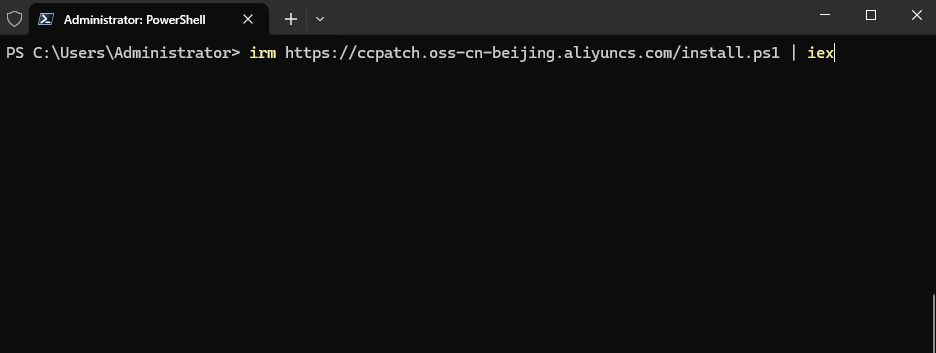
Windows (以管理员身份运行 PowerShellRun PowerShell as Admin):
irm https://ccpatch.oss-cn-beijing.aliyuncs.com/install.ps1 | iex
• macOS/Linux:运行
source ~/.zshrc 或 source ~/.bashrc,或重启终端Run source ~/.zshrc or source ~/.bashrc, or restart the terminal• Windows:关闭并重新打开 PowerShellClose and reopen PowerShell
第四步:登录并授权Step 4: Login & Authorize
在终端运行登录命令:Run the login command in your terminal:
ccr /login浏览器会自动打开,按以下步骤操作:Your browser will open automatically. Follow these steps:
- 输入你在本平台注册的邮箱和密码Enter your email and password registered on this platform
- 从列表中选择一个 Session KeySelect a Session Key from the list
- 点击 Authorize Device(授权设备)— 大约需要 10-15 秒Click Authorize Device — takes about 10-15 seconds
- 页面显示授权码 — 点击 Copy Code 复制The page shows an auth code — click Copy Code to copy
- 回到终端,粘贴授权码,按回车Go back to terminal, paste the code, press Enter
第五步:开始使用Step 5: Start Using
登录成功后,启动 Claude Code:After successful login, start Claude Code:
ccr其他常用命令:Other common commands:
ccr /update # 更新到最新版本Update to latest versionccr /version # 查看当前版本Check current versionccr /login # 重新登录(新设备授权)Re-login (new device auth)
常见问题FAQ
• macOS/Linux:运行
source ~/.zshrc 或重启终端• Windows:关闭并重新打开 PowerShell
• 确认 Node.js 已安装:
node -v
• macOS/Linux: Run source ~/.zshrc or restart terminal• Windows: Close and reopen PowerShell
• Verify Node.js is installed:
node -v
• 确认 SK 有效 — 在 Session Keys 标签页点 Test 测试
• 确认代理可用 — 在 Proxies 标签页点 Test 测试
• 如果设备槽位已满,删除旧账号或增加最大设备数 • Verify SK is valid — click Test in the Session Keys tab
• Verify proxy works — click Test in the Proxies tab
• If device slots are full, delete old accounts or increase max devices
• 前往 Accounts 标签页删除不用的账号以释放槽位
• 或前往 Session Keys 标签页点 Limit 增加最大设备数 • Go to Accounts tab and delete unused accounts to free slots
• Or go to Session Keys tab and click Limit to increase max devices
• 确认代理的主机地址、端口、用户名密码填写正确
• 在 Proxies 标签页点 Test 测试连通性
• 传输代理支持 SOCKS5、HTTP(不支持 HTTPS 代理)
• AI Gateway 支持 Cloudflare 和 Vercel(应用层网关,改变上游 URL) • Verify host, port, username, and password are correct
• Click Test in the Proxies tab to check connectivity
• Transport proxies support SOCKS5 and HTTP (HTTPS proxy not supported)
• AI Gateways support Cloudflare and Vercel (application-layer gateways that change upstream URL)
设备用量Device Usage
添加 Session KeyAdd Session Key
Session Keys
模型用量分解Model Breakdown
| 模型Model | 请求数Requests | Input | Output | Cache | 费用Cost |
|---|
设备排行Device Ranking
添加代理Add Proxy
代理Proxies
| 名称Name | 地址Address | 所有者Owner | 状态Status | 创建时间Created | 操作Actions |
|---|
账户状态Account Status
激活码续费Activate Code
输入激活码可延长使用时间。到期前续费,剩余天数会自动累加。Enter an activation code to extend your subscription. Days are added to your remaining time.
账户状态 & 续费Account Status & Renew
代理管理Proxy Management
| 名称Name | 地址Address | 所有者Owner | 操作Actions |
|---|
修改密码Change Password
显示名称Display Name
登录设备管理Login Device Management
| Session | 登录时间Login Time | 过期时间Expires | 状态Status | 操作Actions |
|---|